Check out our latest communities fighting
AI scams on Reddit and Facebook
On SmartCustomer, businesses may not offer incentives or pay to remove reviews. Learn more about our Review Guidelines.
Fabness has a rating of 4 stars from 267 reviews, indicating that most customers are generally satisfied with their purchases. Reviewers satisfied with Fabness most frequently mention customer service, canvas prints and high quality. Fabness ranks 7th among Photo Printing sites.
We monitor reviews for authenticity

The website is easy to use and the order arrives in a timely manner. Photo online website usually provides a lot of add-on options that I usually ignore. This website actually provides an enhancement option that have greatly improves the quality of the photo canvas. I have make many online photo purchases. This is the first time I have ever buying an add-on option and it worked out great.
What an awesome memory captured for all to see. Fabness offers great quality work with even better prices.
Good afternoon Carlos!
Thank you for the glowing review! At Fabness, we love to help preserve our customers’ special memories! Please let me know if you ever need any assistance; I can be reached at, [email protected], attention Jennifer.
Warmest regards,
Jennifer

I was extremely pleased with my canvas order, the quality was more than I expected and the picture quality was extremely clear and excellent
Good afternoon Vida!
It’s wonderful to hear how much you enjoy your canvas! We strive to produce a quality product that you will enjoy for years to come! Check your email often, as we frequently send new and exciting deals! From all of us at Fabness, have a beautiful day!
Kind regards,
Jennifer
Quick delivery, quality product, good deal. Can't wait to see how happy this gift makes the birthday girl.
Good morning Dianne!
Thank you for your 5-star review! Please let us know how the birthday girl enjoys her gift! Thank you for your continued business, and have a fantastic day!
Warm regards,
Jennifer
I am extremely impressed with my Fabness orders and the quality of each canvas is so awesome. I absolutely love this Fabness company! Their products are great and I recommend to family & friends.
Good morning Angel!
We appreciate your kind feedback! We always endeavor to produce a pleasurable experience each and every time! Thank you for your continued support, and have a fabulous day!
Best regards,
Jennifer
I ordered three 8x10 canvases and couldnt be more satisfied! From great customer service to quality materials, Fabness is my go to for canvases! Thank you Fabness!
Hi Mark!
Thank you for the kind words! It means a great deal to our team you had such a fabulous experience! We appreciate your patronage, and have a great weekend!
Kind regards,
Jennifer
There was a problem with delivery of product. This customer was professionals and friendly as well as quick to reply. Fabness was efficient with locating and solving the problem. Once I received the product I was blown away by the quality of my three 8x10 canvas photos. I would highly recommend this company and their canvas photos.
Hello Melissa!
Thank you for taking the time to review Fabness.com! We love hearing about our customers’ positive experiences! We hope you enjoy your canvases, and have a wonderful day!
Warm regards,
Jennifer
Answer: Hello Glenda, Please see our Photobook FAQ. If you have any additional questions, please contact our customer support team at, 1 800 540-5729, email support at [email protected], or utilize our Live Chat function. Thank you for visiting Fabness, and have a great day. Kind regards, Jennifer Q: What Images can I use for a Photo Book? We recommend using Jpeg images that have a file size of about 1mb for a Photo Book. You can use Instagram or Facebook images, however we do recommend that you use them as a collage or 4 photos to a page; these images can appear blurry or "pixelated" if used on a full page as the resolution is low. Q: Do I need to create an account? Yes, you do need to create an account when you are creating a Photo Book. This is to allow you to upload and save your project to your account, and also means if you would like to save your project half way through creating your book you can. It is also handy for reordering extra copies of your Photo Book as you can simply add it to your cart. Q: How do I edit text for my Photo Book on my phone? Touch the text area and it should bring up the text box. To delete the text box, click on the element, then select transform, then click and drag the element off the page and a little trash can icon should appear to delete it. Q: How do I delete a Photo or template when creating a Photo Book? Click on the element, then select transform, then click and drag the element off the page and a little trash can icon should appear to delete it. Q: How do I add a new Photo to my project? Click on My Photos at the top of the page. Select the album you wish to upload to, and then select upload. Click on Local Drive, Facebook or Instagram. Select the images you wish to use and add photos. To go back to your project please click Continue. The new images will be located at the bottom of the album. You will need to manually add the new images to your project. Q: How do I change Photos in my Book? Please click on the image, and select remove Photo. You can then go back into choose photo and add a new one that way. Q: How do I save my Project? Please click on the disk icon which will save your project. At this stage there is no auto save so please save your project at least every 5 - 10 minutes. Q: What size should my images be? We recommend that your images should be between 3-10 MB in Jpeg format. Q: How do I edit my images? Click or tap on the photo. You will then see a little hand icon appear, and below that Pan/Zoom and Transform. To rotate, on the left hand side you should see a list of options: Choose Photo, Rotate 90, Remove Photo, Change Layout, Change Theme, Add new Photo and Add new text. Q: How do I add or delete pages from my Book? At the bottom-right-hand corner of the editing area of your book you should see two double page icons, one with a plus button and the other with a trash can icon. To add pages click the double page icon with the plus button. Please make sure you add the new pages to the back of the book. To delete pages select the second-last double pages and then click the double page icon with the trash can. Unfortunately you cannot delete the last single page. Q: How do I autofill my Book? Please upload all the images you wish to use. We recommend uploading a minimum of 22 images which equates to 1 image per page plus cover for a 20-page book. Once uploaded click Select All and then Continue. This will then place all the images into your book in the order you have uploaded them to your album (chronological order). If you wish to change the order please click on each image individually in the order you wish to have them place and then select upload. Q: How do I zoom my images in? Double click or tap on the image and this will zoom the image in. To zoom out just double tap or click on the image again. Q: How do I add text to my spine or pages? Please click on the area and then add new text. You can edit the text size, font and background color in the edit options on the left hand side. To delete the text box click on it and select transform. Click and drag the box off the page until the trash can icon appears on it. Text can only be added to the spine of the Hard Cover Books. Q: I have a Voucher/Coupon code to use; how do I apply it? Once your book is in the shopping cart please add your code to the Discount Code area and click on Apply Coupon. The total amount should be reduced. Click on proceed to cart once the amount is correct. Q: Can I store images? Fabness allows you to access your images through My Photos. However, please note that: - We provide Image Storage at no cost in order to facilitate Users' creation and purchase of personalized Products bearing their Images. - Accordingly, we do not intend or invite Users to store their Images other than for those purposes. - We are entitled to introduce a policy for the removal of your Image Storage if you do not make limited purchases of personalized Products from us within a 12 month period. - You should always keep a copy of your original images and make a back-up copy of all your images on your personal systems. We do not undertake or guarantee to keep your images and will not be responsible for the loss of, deletion or corruption of any images. You should not use Dinkleboo as the only repository of your images.
Answer: Hello Amanda, Please contact our customer care team at your earliest convivence. They will be able to walk you through the steps. By clicking upload image, then selecting your desired photo, it should appear. We can be reached at 1 800 540-5729, email support at [email protected], or utilize our Live Chat function. Thank you for visiting Fabness, and have a great day. Best regards, Jennifer
Answer: Hello Virginia, This is a public forum, so please contact me at [email protected], attention Jennifer. Or you can contact our staff via Live Chat or at 1 800 540-5729. Kind regards, Jennifer
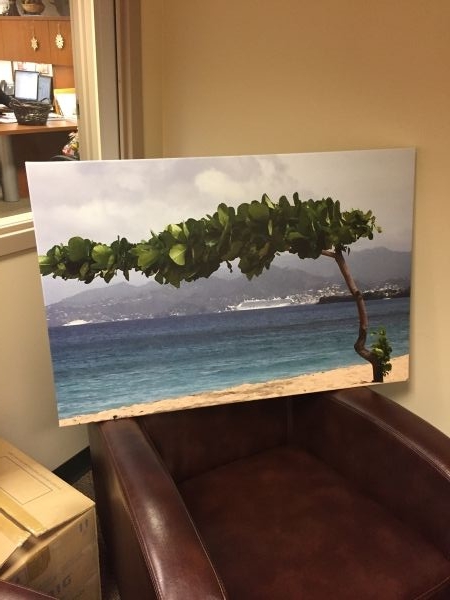
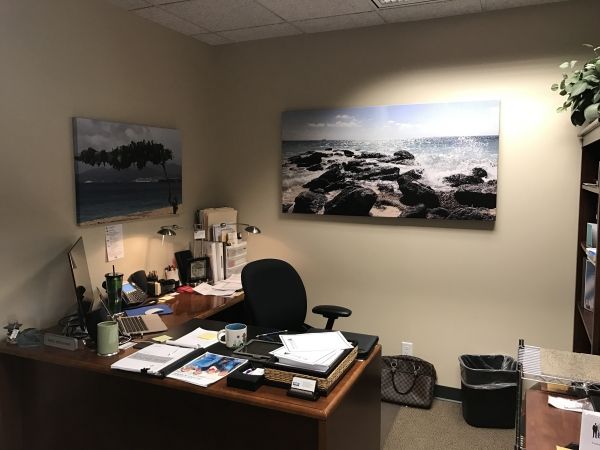
Print your own photo images onto canvas by using our expert printing process. Create quality canvas printing framed by adding photos from your phone, tablet, and desktop. Save big on square, sets and panoramic canvas prints.

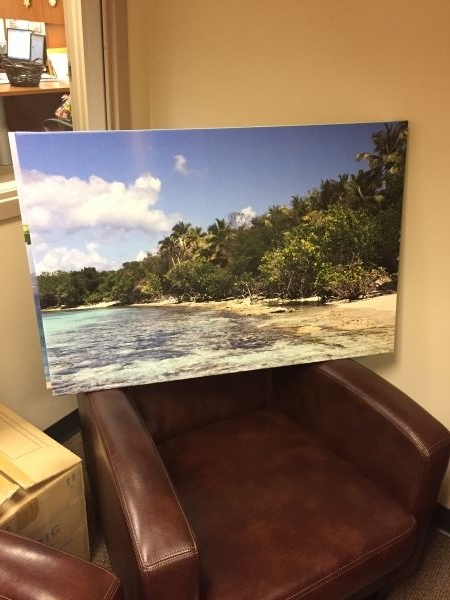
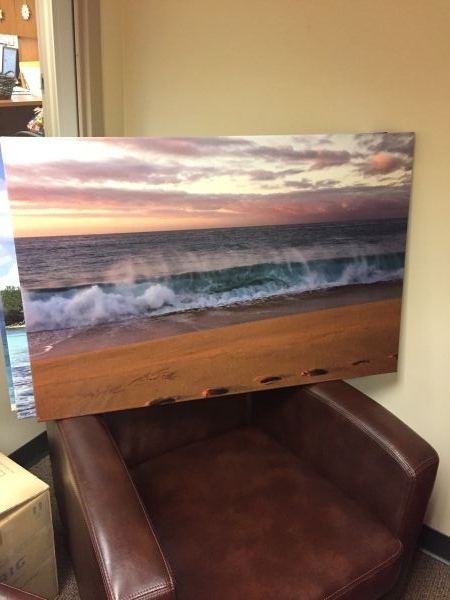
Hello Tat!
We truly appreciate your kind and genuine review! Fabness is continually working to provide our customers with tools that will help them develop and create a canvas that they will cherish and love! Thank you for your business, and have a fabulous day!
Best regards,
Jennifer